
Organize by the way you work
Create channels for a department, project or customer-support topic. Joined channels and teammate search make it easier to reach the right people without broadcasting every question to the whole company.
Channels, direct messages and quick conversations inside the Inbox. Bring people and Message AI together around the customer’s next step, without losing the conversation you were helping with.
Message Team has its own Free and paid plans. One account connects your team and support workspace.Acknowledge it and keep moving.
Inside a direct message or team channel, ask Message AI to remember the callback, deadline or task. It keeps the conversation close to the work.
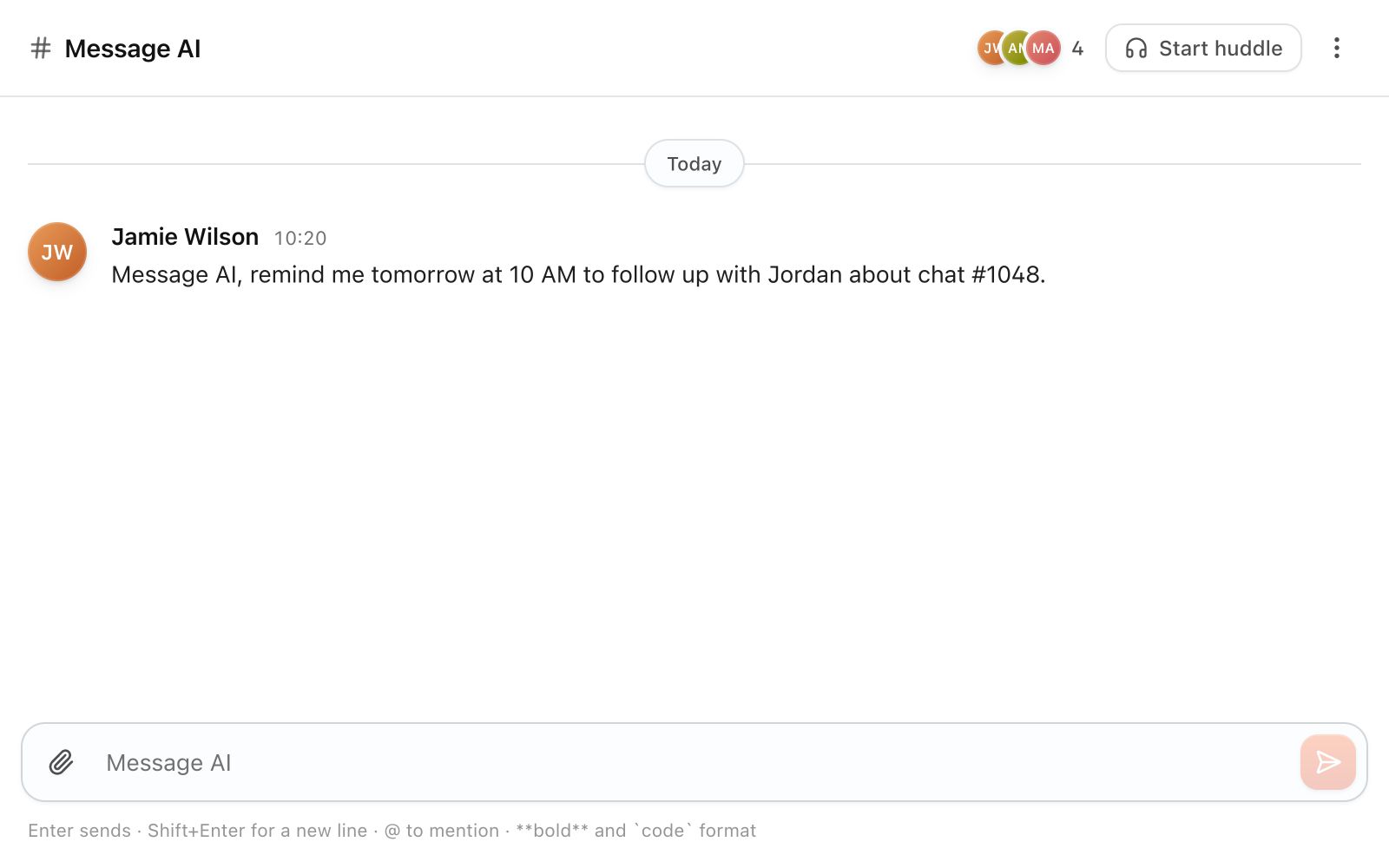
Actual Team interface · Illustrative conversation · Time compressed
A customer asks for John. He’s busy. Ask Message AI to pass on the request and help him follow through, with the chat or call attached.
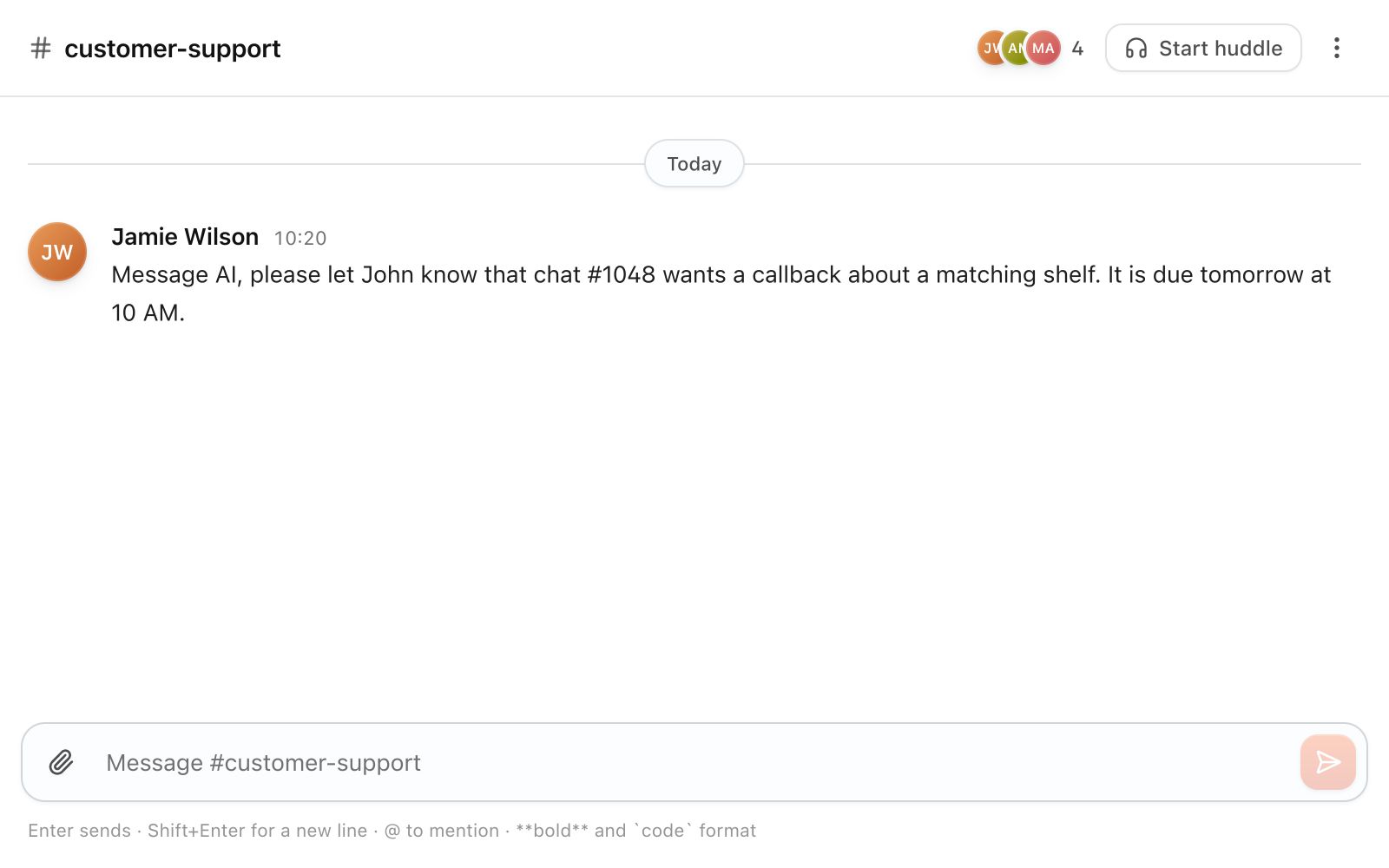
Actual Team interface · Illustrative conversation · Time compressed
A channel for the work. A thread for the detail. A direct message for the person who can help. Give the team somewhere better than a chain of forwarded screenshots.
Create channels for a department, project or customer-support topic. Joined channels and teammate search make it easier to reach the right people without broadcasting every question to the whole company.
Use replies and threads to follow a discussion without burying the main channel. Reactions can acknowledge a message without adding another “got it” to everyone’s reading list.
Send files, mention teammates and search earlier discussions. The context should survive a shift change instead of living only in the memory of the person who happened to answer.
Customer work rarely belongs to just one person. The Inbox’s Team dock gives agents a way to coordinate while their chat, ticket or call stays in view.
Search employees and joined channels, then open an internal conversation along the bottom of the Inbox. The customer does not see your private discussion.
Minimize, pin and rearrange chats into the order that works for you. More chats keeps overflow available, with unread indicators so an incoming message does not get lost outside the visible row.
Mute conversations when you need quiet. Your chosen order should remain predictable while you work, instead of moving every chat whenever someone replies.
Give the assistant the person, the promise and the conversation reference. The next teammate should receive enough context to act, not a mystery notification.
Ask AI to notify a teammate about a chat or callback and include the relevant conversation. A due time makes a promise actionable rather than another message someone has to remember.
Follow-ups have a state and an owner. Acknowledging, completing or cancelling the task stops the relevant reminders instead of continuing to nudge someone who has already taken responsibility.
Tell the internal assistant what should happen next time. Review the proposed company guideline before saving it, keeping durable policy separate from a one-off exception in a chat.
From a two-person question to a busy support channel, keep communication searchable and organized.
Organize shared topics and reach a colleague privately. Membership and permissions determine who can participate in a channel.
Keep a detailed reply attached to its original message and mention the person who needs to see it. The channel stays easier to scan.
Share the document that answers the question and acknowledge updates with a reaction. Supported files and storage depend on your plan.
Move from text to a live huddle when talking is faster. Group size, video and screen sharing depend on the Team plan and available device permissions.
Find earlier conversations instead of asking the same question again. The visible history window and other plan limits are shown in your workspace.
Use the supported summary, recap and assigned-task workflows with your Team plan. Review the result and its context before treating it as an instruction to a customer.
Create the workspace and invite teammates with the right role. Start with a small set of channels people can understand immediately.
Use a support channel for questions, a direct message for a callback owner and the Inbox dock for help during live customer conversations.
Choose the permitted internal-assistant behavior and who can approve company guidance. Try a follow-up and acknowledge it so the whole team understands the flow.
Message Team has its own Free and paid plans. One account connects your team and support workspace.